
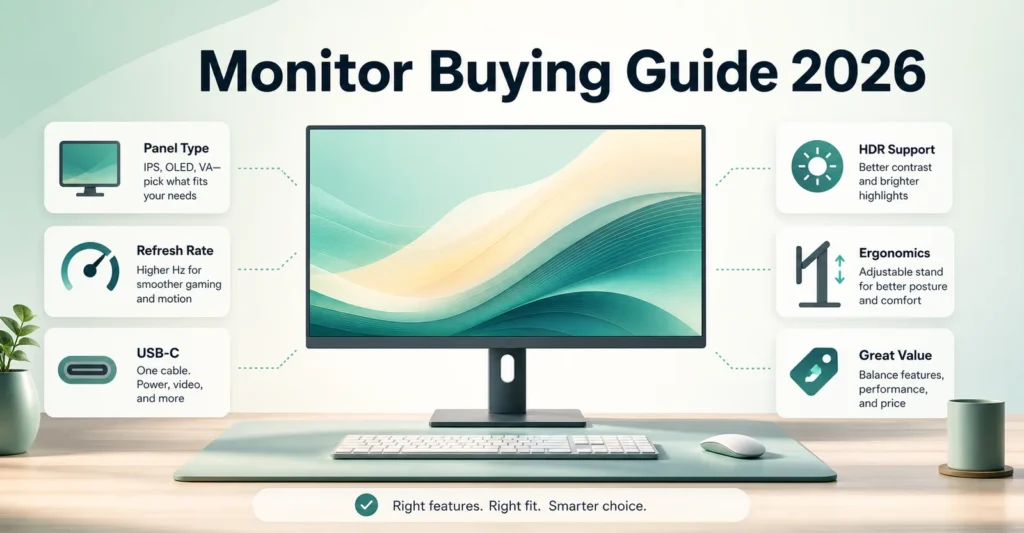
A practical 2026 monitor buying guide covering screen size, resolution, panel type, refresh rate, ports, ergonomics, HDR, and final purchase checks.
Choosing a monitor in 2026 is less about chasing one impressive number and more about matching the display to the way you actually use your desk. A good monitor for esports may not be the best monitor for office work. A sharp creator display may not be ideal for competitive gaming. A budget office screen may be perfect for study but weak for HDR movies. This guide explains the practical decisions that matter before you upgrade.
Start with your main use case
The first decision is not brand or price. It is use case. Gamers should prioritize refresh rate, response behavior, adaptive sync, HDMI or DisplayPort support, and whether the graphics card can drive the chosen resolution. Office users should focus on text clarity, ergonomics, eye comfort, USB-C, and screen size. Creators should pay attention to resolution, color coverage, panel consistency, brightness, calibration claims, and whether the work is truly color critical. Mixed-use buyers need a balanced monitor that avoids obvious weaknesses.
Pick the right screen size
A 24-inch monitor is compact and works well for small desks, study setups, and budget gaming. A 27-inch monitor is the mainstream sweet spot because it pairs well with both QHD and 4K. A 32-inch monitor is more immersive and makes the most sense with 4K, creator workflows, or large productivity layouts. Ultrawide monitors can improve timeline editing and multitasking, but they need more desk width and careful compatibility checks for games and software.
Resolution matters for clarity and performance
Full HD is still usable for budget and basic office work, especially around 24 inches. QHD is often the best balance for 27-inch gaming because it is sharper than FHD without being as demanding as 4K. 4K is excellent for text clarity, spreadsheets, design work, coding, content creation, and console use, but high-refresh 4K gaming requires stronger hardware. Do not buy a resolution only because it sounds premium; buy the resolution your desk, eyes, and hardware can use well.
Understand panel types
IPS monitors are popular because they offer balanced color, viewing angles, and general desktop comfort. VA panels usually offer stronger contrast, which can help movies and dark scenes, but motion performance varies by model. OLED and QD-OLED panels offer excellent contrast and very fast response, but buyers should understand OLED care for static desktop elements. Mini-LED can improve HDR by using local dimming, but the quality depends heavily on zone count, algorithm, brightness, and implementation.
Refresh rate and response time
Refresh rate controls how many times the monitor updates per second. Moving from 60Hz to 100Hz or 144Hz can make desktop and gaming motion feel smoother. 165Hz to 180Hz is a strong mainstream gaming class. 240Hz and above is mainly useful for esports-focused players who can actually produce high frame rates. Response-time numbers should be treated carefully because manufacturer claims are not always measured the same way. Use them as a signal, not as lab proof.
Ports and workflow features
Connectivity can decide whether a monitor is convenient or frustrating. Check DisplayPort, HDMI version, USB-C display input, USB-C power delivery, USB hub, KVM, audio output, and whether the monitor supports the refresh rate you want over the port you plan to use. Laptop users should pay special attention to USB-C power delivery. Multi-device users may benefit from a built-in KVM. Console users should verify HDMI support and the exact refresh and resolution mode supported.
Ergonomics and desk comfort
Height adjustment, tilt, swivel, pivot, and VESA support are not small details. They affect posture, desk layout, neck comfort, and long-term use. A monitor with strong specifications can still be a poor choice if the stand is too limited or the screen cannot sit at the right height. For serious work setups, a VESA arm can be as important as the monitor itself.
HDR and brightness caution
HDR is one of the most misunderstood monitor features. A basic HDR label does not guarantee a strong HDR experience. Good HDR needs brightness, contrast, local dimming or OLED-level black control, and proper content support. Treat HDR labels carefully and compare panel technology, brightness, contrast behavior, and credible review data where available.
Final buying checklist
- Confirm the exact model number and regional SKU.
- Compare manufacturer specifications with retailer listing details.
- Verify current price, seller reputation, return policy, and warranty channel.
- Check ports, included cables, stand features, and VESA compatibility.
- Match resolution and refresh rate to your PC, console, or laptop.
- Avoid buying only because a product is discounted or trending.
Frequently asked questions
Is 27-inch the best monitor size?
For many buyers, yes. A 27-inch monitor works well for QHD gaming and 4K productivity, while still fitting most desks.
Is 4K always better than QHD?
No. 4K is sharper, but QHD can be a better gaming choice when hardware performance and high frame rates matter more.
Should I choose IPS or OLED?
IPS is safer for long desktop sessions and general work. OLED is stronger for contrast, response time, and HDR-style media, but needs static-image care.
Is 144Hz enough for gaming?
For most gaming setups, 144Hz to 180Hz is a strong range. Esports-focused players may prefer 240Hz or higher.
Does USB-C matter?
USB-C matters most for laptop users who want display, charging, and hub features through one cable.
Should I trust response-time claims?
Treat them as a starting point. Different brands measure response time differently, so practical reviews and real use context matter.

MonitorSuggest Editorial Team
MonitorSuggest publishes display buying guides, comparison explainers, and monitor research notes using listed specifications, editorial checks, and user-submitted signals where available.