Spend any time shopping for a premium gaming monitor and burn-in eventually enters the conversation. It may arrive as a warning in a forum thread, a line in the warranty terms, or a question you start asking yourself just before paying OLED money: will this screen still look clean a few years from now?
The awkward answer is that burn-in has not disappeared. OLED is a self-emissive technology, and its light-producing materials age with use. If the same parts of the panel are asked to show the same bright interface elements for long enough, they can age differently from the rest of the screen.
That still does not make the popular shortcut — "OLED always burns in" — particularly useful. A monitor used for three hours of varied gaming each evening does not live the same life as a monitor showing Excel, a browser and the Windows taskbar for nine hours every weekday. Treating those two workloads as equivalent is where a lot of burn-in advice goes wrong.
After reviewing long-duration monitor tests, current 2026 panel announcements, manufacturer care systems and warranty language, our view is fairly straightforward: for most gaming and mixed-use buyers, burn-in is a manageable ownership consideration rather than a reason to rule OLED out. For very heavy static productivity, it deserves much more weight in the buying decision.
Table of contents
The short version
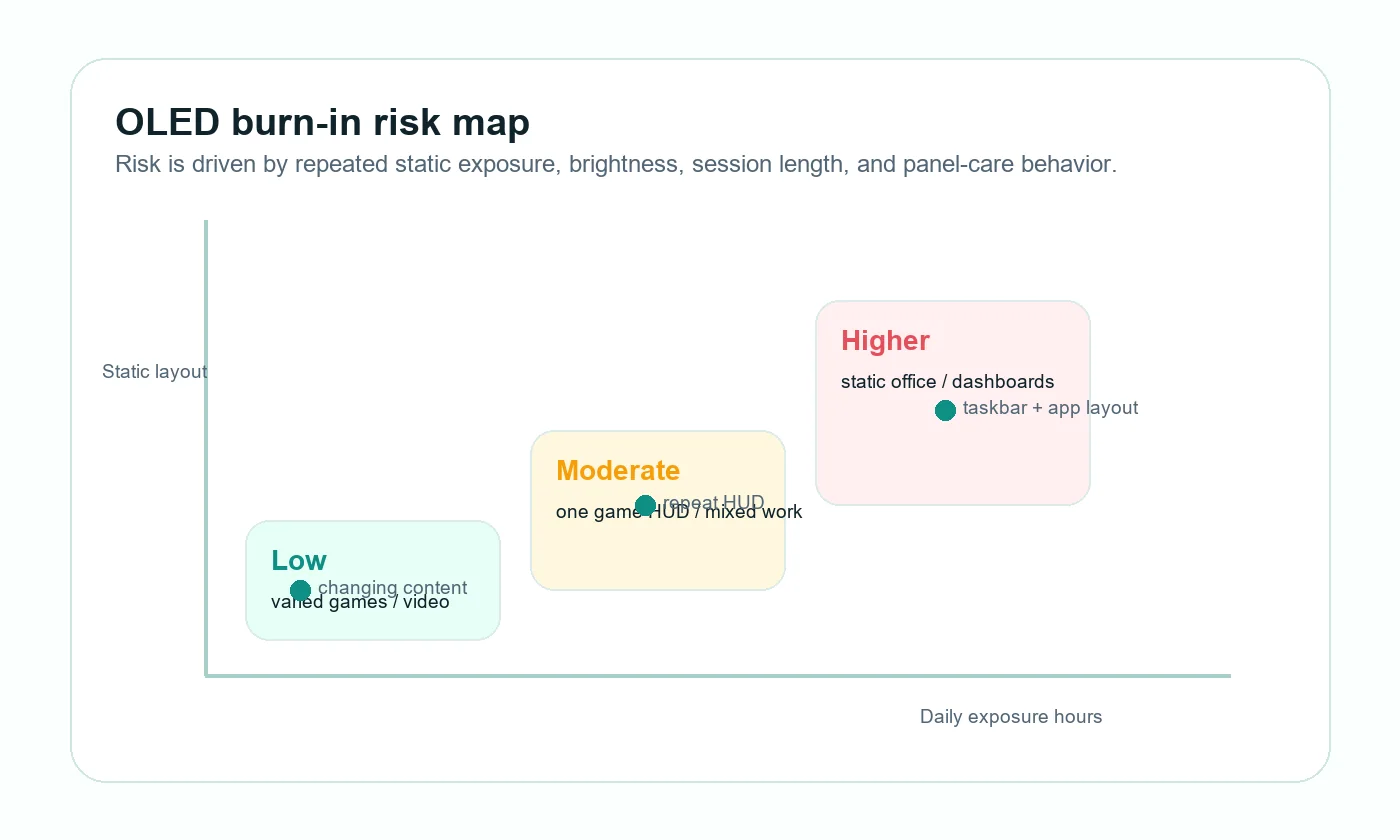
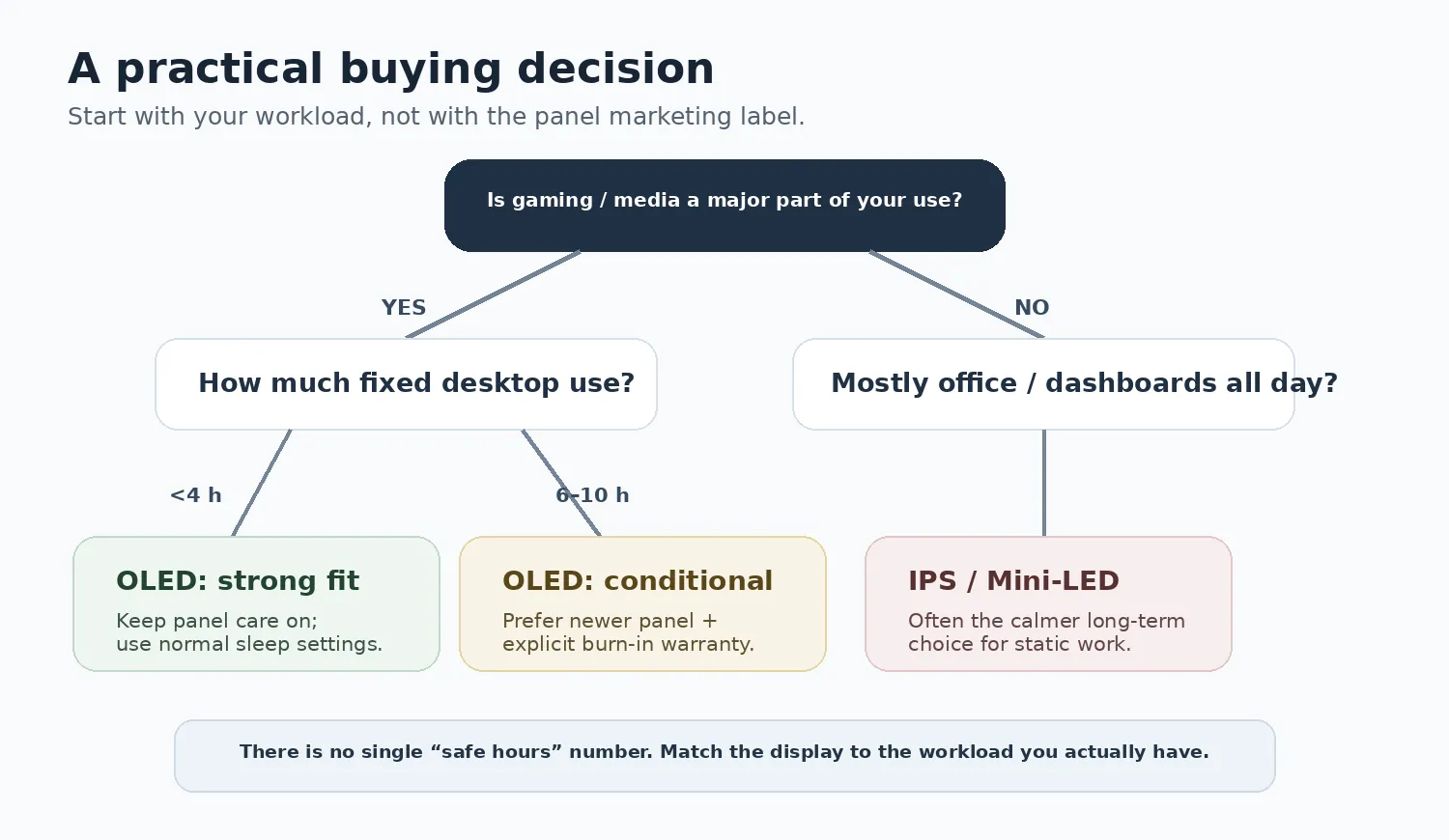
If your screen is mostly filled with games, video and changing content, modern OLED is easy to justify if you want to find a monitor for your setup. If the same IDE, spreadsheet, trading dashboard or editing layout sits in the same place for most of the day, an IPS or Mini-LED monitor remains the calmer long-term choice.
| Buyer profile | OLED fit | What to verify before shortlisting |
|---|---|---|
| Gaming-first, varied library | Strong fit | Panel care settings, warranty wording, exact model, and HDR behavior. |
| Console and media use | Strong fit | HDMI support, 120Hz modes, VRR, brightness behavior, and screen size. |
| Mixed work and gaming | Conditional fit | Daily static hours, taskbar habits, brightness, and whether you can vary layouts. |
| Heavy office / coding / trading | Higher caution | Static app layout, warranty, long-session brightness, and whether IPS/Mini-LED is safer. |
| Shared family display | Depends on habits | Screen savers, auto sleep, children leaving static menus open, and remote-control panel care prompts. |
First, separate burn-in from temporary image retention
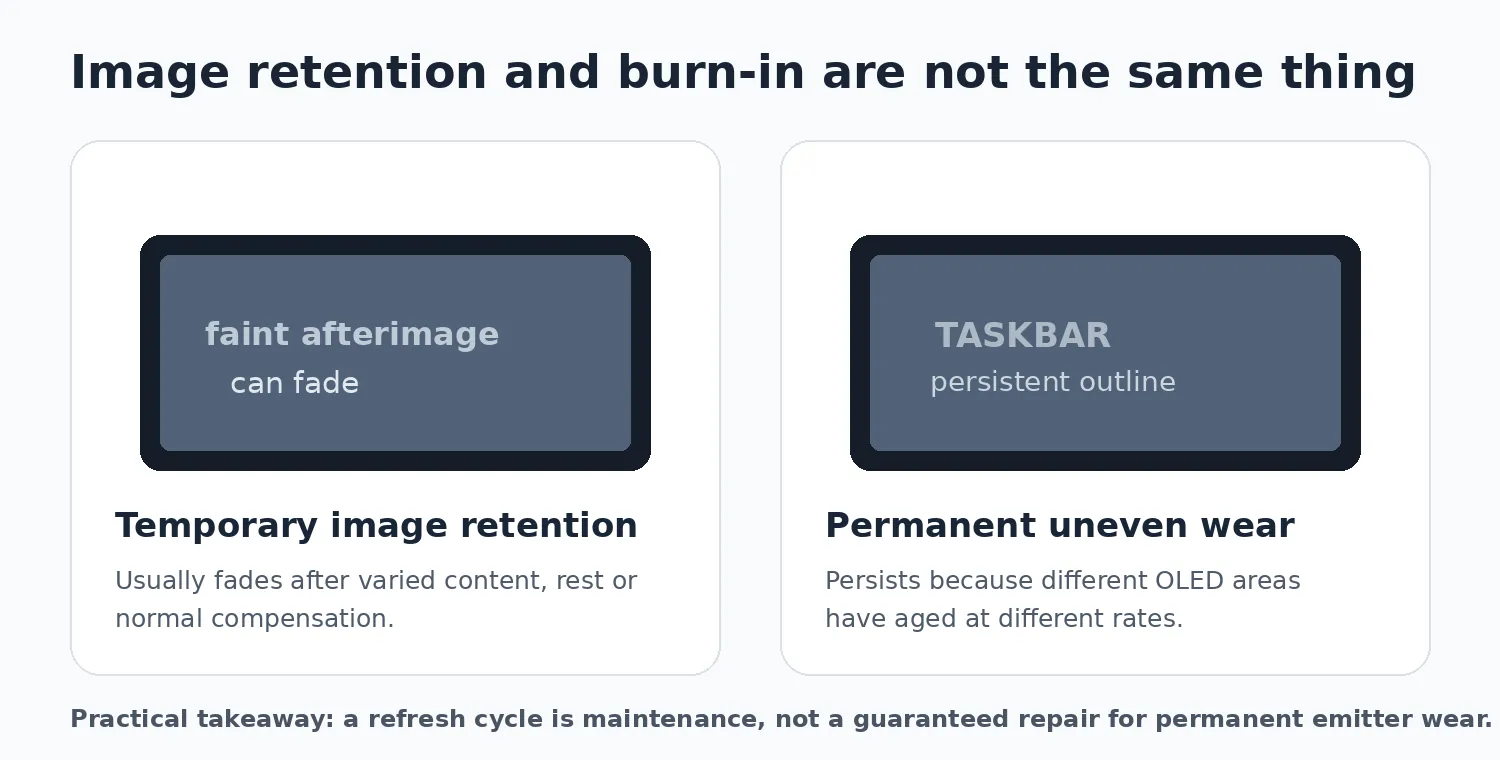
The two terms are often thrown together, but they describe different things. Temporary image retention is an afterimage that can fade after the screen shows varied content, rests or completes its normal maintenance cycle. Permanent burn-in is persistent uneven wear: one area of the panel has aged differently enough that the difference remains visible.
That distinction matters because the names of OLED maintenance tools can sound more magical than they are. Pixel Refresh, Pixel Cleaning and Screen Optimization are valuable maintenance systems, but they should not be understood as unlimited repairs for permanently aged organic material.
What burn-in actually comes from
Each OLED pixel produces its own light. That is why black can look genuinely black: a pixel can simply stop emitting light. It is also why OLED can respond so quickly and produce such strong local contrast without a conventional LCD backlight.
The trade-off is wear. The light-emitting material ages as it is driven. Normal, reasonably even aging is not the problem most buyers notice. The visible problem appears when one region accumulates a very different history from another.
Think about a bright application window snapped to the left side of a 32-inch screen every day, with a darker divider in the center and another bright window on the right. Over thousands of hours, the large bright regions can accumulate more wear than the darker center boundary. What becomes visible can even look like a brighter line — an example of inverse burn-in caused by the surrounding areas aging faster.
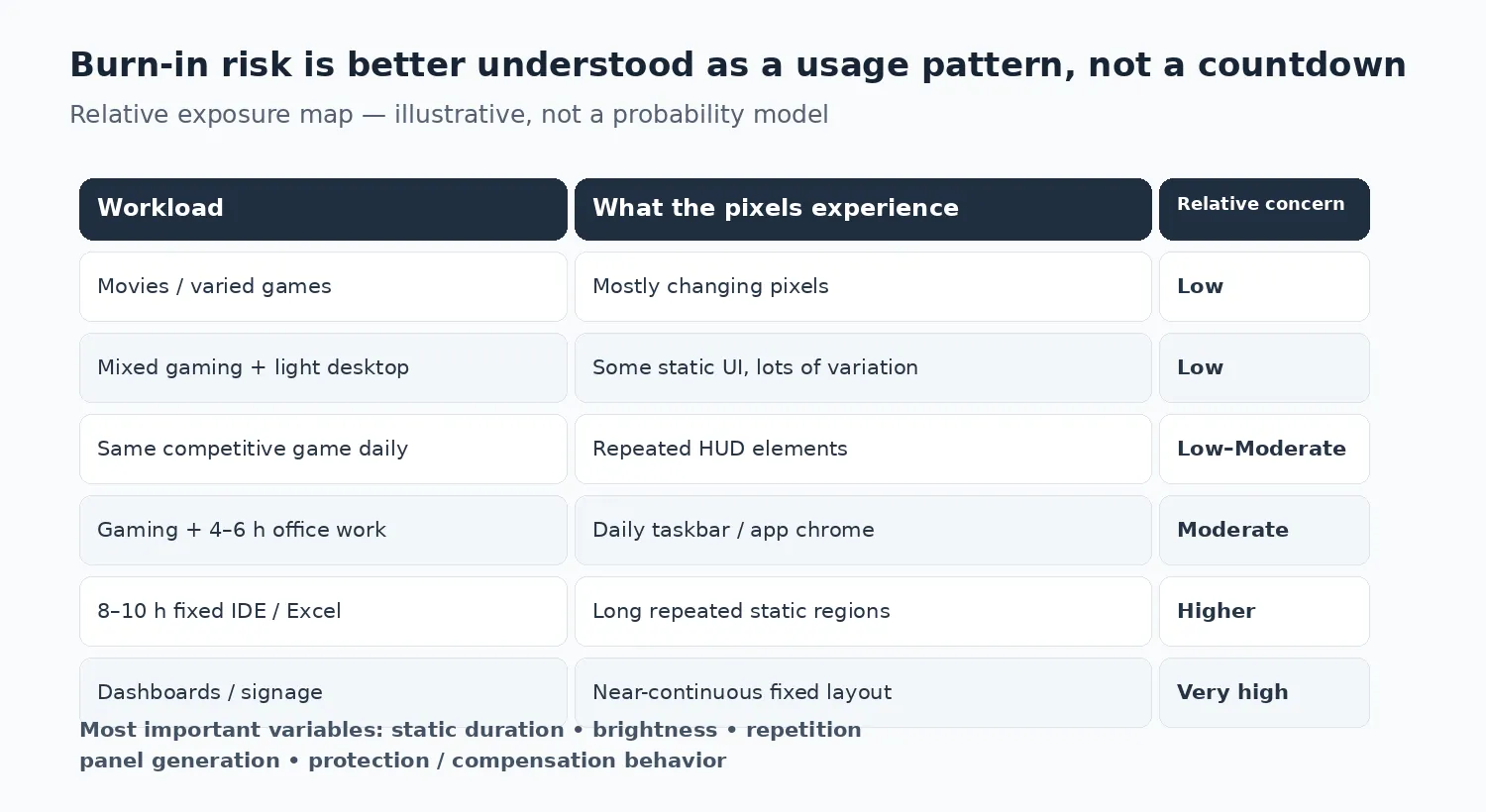
That is why a useful burn-in discussion has to include four things: how static the content is, how bright it is, how often the same layout repeats, and how the monitor manages the panel between sessions.
The most useful real-world evidence: 6,500 hours of deliberately bad OLED use
The clearest monitor-specific stress test we found is TechSpot / Monitors Unboxed's ongoing MSI MPG 321URX experiment. It is useful precisely because the setup is unfriendly to OLED. The 32-inch 4K QD-OLED was used as an office monitor rather than as a gaming display: light-mode applications, a visible taskbar, side-by-side productivity windows and long workdays at roughly 200 nits.
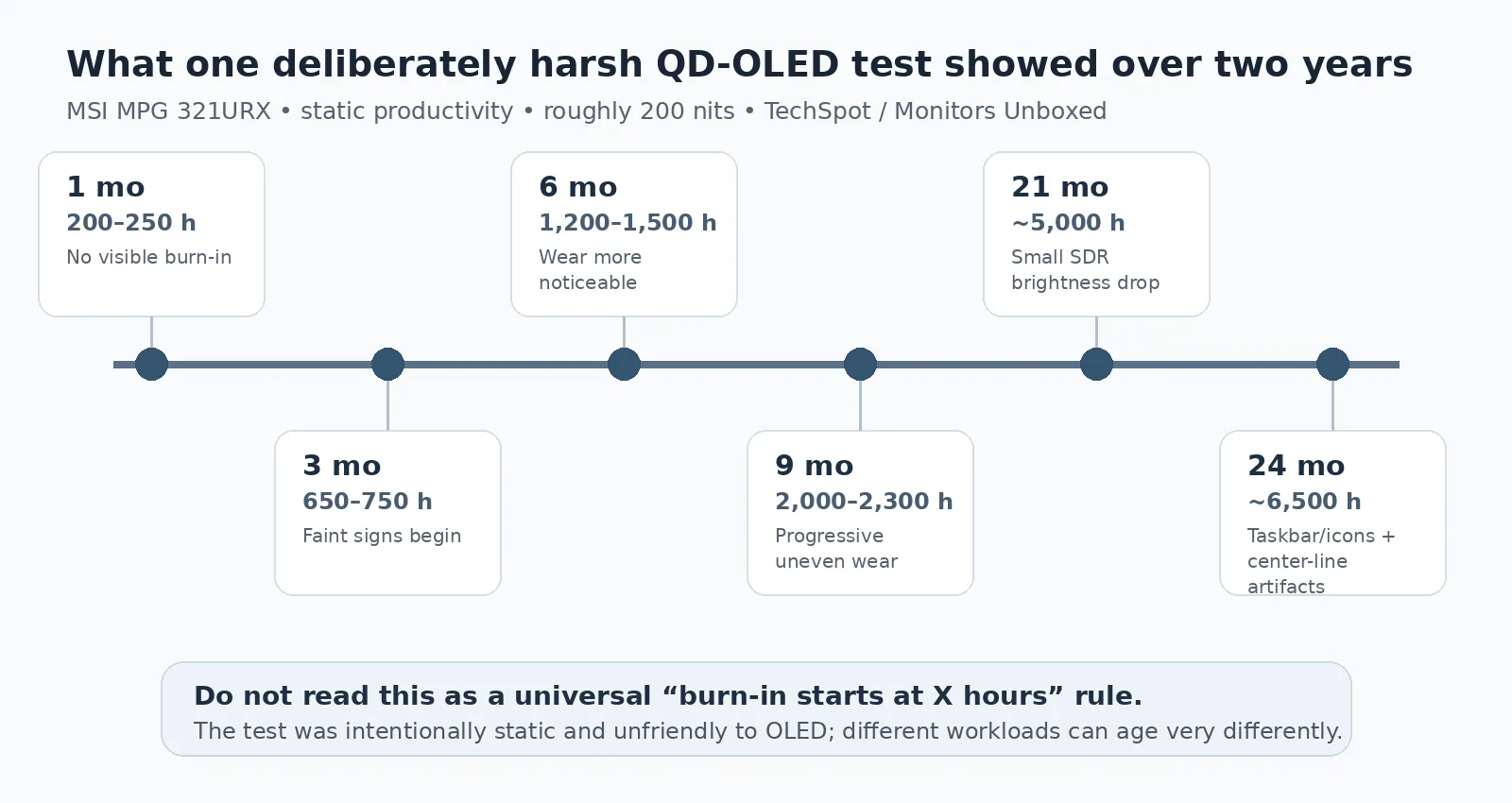
At the two-year update in March 2026, the display had accumulated about 6,500 hours — roughly eight to ten hours of static productivity use a day. The tester had not redesigned his workflow around OLED longevity, and compensation cycles were run less frequently than the four-hour interval the monitor recommends because interrupting a workday that often would be impractical.
| Checkpoint | Approx. use | What the test reported |
|---|---|---|
| 1 month | 200–250 hours | No visible burn-in. |
| 3 months | 650–750 hours | Faint signs began to appear. |
| 6 months | 1,200–1,500 hours | Uneven wear became more noticeable. |
| 9 months | 2,000–2,300 hours | Progressive artifacts under test patterns. |
| 21 months | ~5,000 hours | First small measured drop in full-screen SDR brightness. |
| 24 months | ~6,500 hours | Center split, taskbar/inverse wear and faint app-icon artifacts were visible. |
There are two details worth holding at the same time. First, burn-in was real and eventually became visible in ordinary productivity work. The center line could sometimes be mistaken for something in an image or video project, and the taskbar region continued to develop uneven wear. Second, this was still not a dead monitor after two years of intentionally punishing use.
Peak full-screen SDR brightness is an interesting example. TechSpot reported 243 nits through the first 18 months, then 238 nits at 21 months and again at 24 months. That small change does not erase the uniformity damage, but it is a useful reminder that "burn-in" and "the panel has become unusably dim" are not the same failure mode.
Read the full independent test: TechSpot — The OLED Burn-In Test: Two Years Later
Do not turn that test into a universal hour counter
It would be tempting to convert the timeline into a simple rule such as "burn-in starts at 700 hours." That would be a bad use of the evidence. Those hours were dominated by a deliberately repetitive desktop workload. Another 700 hours spent moving through films, games and full-screen video would expose individual pixels very differently.
A better mental model is cumulative static exposure. Hours matter, but what those hours contain matters just as much. Brightness, repeated location, panel generation, thermal behavior and compensation systems all change the result.
Why 2026 matters: the panels themselves are changing
The best long-term burn-in tests inevitably trail the newest hardware by years. That creates a problem: a two-year result is valuable, but the panel being tested began its life two years earlier. It should not be treated as a perfect stand-in for every OLED shipping in 2026.
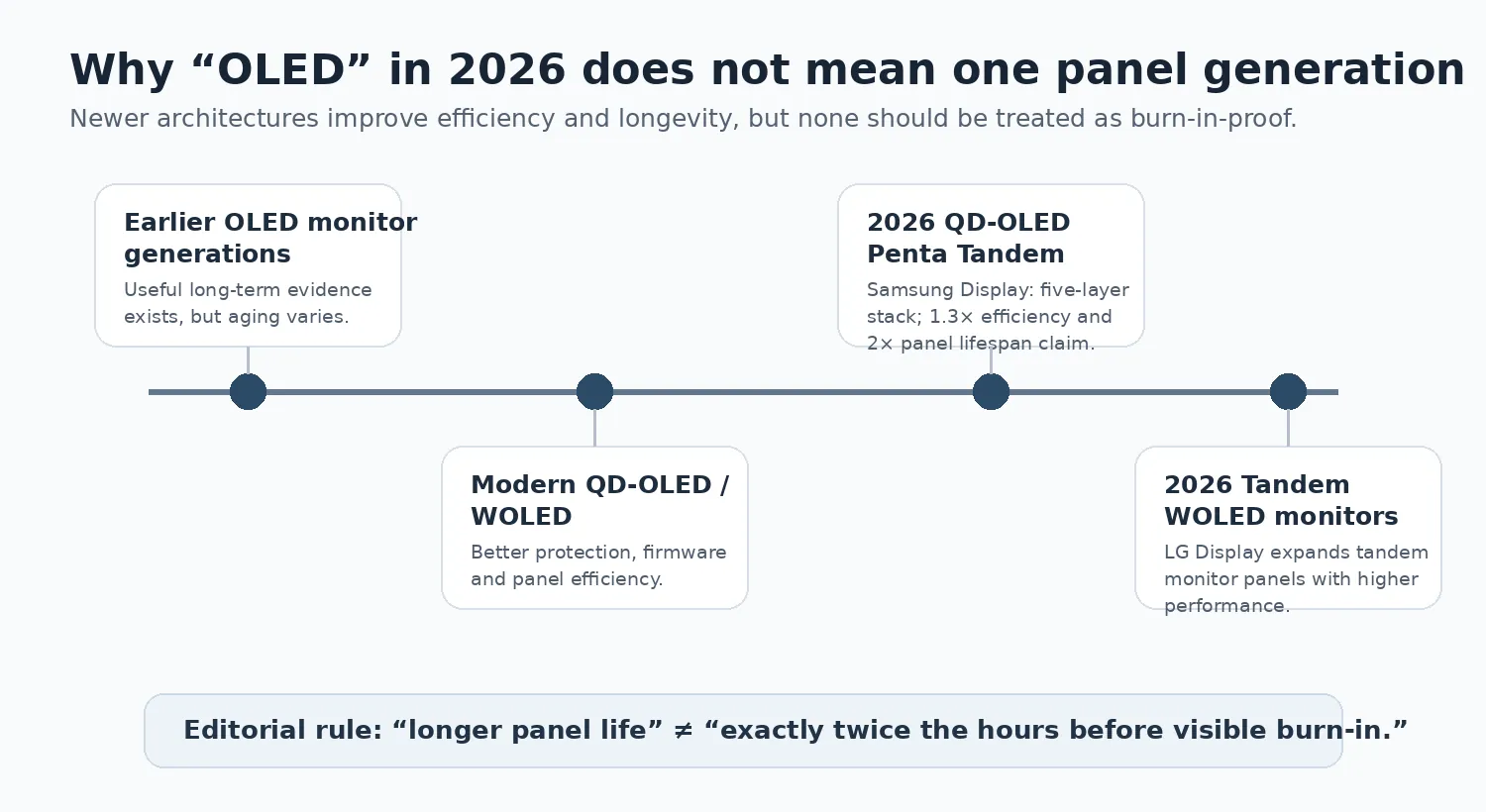
Samsung Display's most important 2026 announcement is QD-OLED Penta Tandem, a five-layer light-emitting architecture. Samsung Display says the new structure improves luminous efficiency by about 1.3 times and doubles panel lifespan compared with its previous four-layer QD-OLED generation. The company is rolling the technology through flagship QD-OLED products during 2026.
That is encouraging, but wording matters. A manufacturer claim of twice the panel lifespan is not proof that a specific Penta Tandem monitor will take exactly twice as many desktop hours to show visible burn-in. Lifespan, monitor firmware, brightness, cooling and visible differential wear are related, but they are not one identical metric.
LG Display is also pushing tandem architecture into its 2026 monitor panels. Its current Tandem WOLED monitor lineup spans high-refresh gaming formats and emphasizes improved performance, brightness and panel engineering. Again, the useful takeaway is not that tandem automatically equals "burn-in solved." It is that current OLED panels should not be assumed to behave identically to the first wave of desktop OLED monitors.
QD-OLED vs WOLED: there is no clean burn-in winner
Search for this question and you will find confident answers in both directions. The evidence is less tidy. RTINGS' current monitor comparison does not identify a significant enough burn-in advantage for either QD-OLED or WOLED to make that the deciding factor between the two technologies.
That makes sense from a buyer's perspective. The label tells you something about how the panel produces color and light, but it does not tell you the entire durability story. A newer-generation panel with stronger thermal management, sensible firmware and a clear burn-in warranty may be a better ownership proposition than an older design from the "safer" camp. You can see current monitor trends to compare these technologies.
Independent comparison: RTINGS — WOLED vs QD-OLED monitors
For gaming, the risk is usually easier to live with
Gaming is naturally kinder to an OLED panel than a fixed desktop layout because so much of the image keeps moving. Cameras pan, environments change, menus come and go, cutscenes replace gameplay, and most people switch between more than one title.
The static part is the HUD. A minimap, health bar, ammo counter or scoreboard can sit in the same place for hundreds of sessions. That exposure is real, especially if one game dominates your library for years, but it still sits inside a much more dynamic image than an eight-hour spreadsheet.
For a player who rotates through AAA games, watches video and uses the desktop casually, burn-in would not be the reason we choose against OLED. For someone who plays a single competitive title for thousands of hours and leaves the same bright HUD visible every day, we would pay more attention to warranty coverage and the monitor's care features.
| Gaming pattern | Relative concern | Why |
|---|---|---|
| Varied single-player games + video | Low | Large portions of the screen change continuously. |
| Several competitive games | Low | HUDs repeat, but layouts and content still vary. |
| One esports title for years | Low–Moderate | The same HUD can accumulate substantial repeated exposure. |
| MMO / sim with dense fixed UI | Moderate | Action bars, maps or telemetry can remain fixed for very long sessions. |
| Gaming plus 6–8 h static office work | Moderate–Higher | The desktop workload, not the game, becomes the bigger longevity factor. |
A HUD is not a timer
Seeing a health bar for a few hours does not mean damage is being stamped into the panel at a fixed rate. Burn-in is cumulative and depends on how those pixels are driven across a much longer period. A bright fixed element shown for years is more relevant than an occasional HUD in a game you play for a month and replace.
For productivity, the calculation changes
Desktop work concentrates exactly the kind of static layouts OLED panels dislike. The Windows taskbar or macOS dock, browser tabs, vertical window splits and application ribbons often remain visible in the same locations for hours every day.
The 6,500-hour TechSpot test shows what this looks like in practice. The tester used the monitor for genuine productivity tasks without hiding the taskbar or completely modifying his workflow. Over two years, the static elements left clear uneven wear.
If a monitor is primarily for coding, writing, trading or general office work, the visual advantages of OLED are often outweighed by the need to constantly manage the screen layout. In those cases, a high-quality IPS panel or a Mini-LED display is usually a more practical choice. It eliminates the burn-in risk entirely and allows you to use the monitor as a tool rather than a pet that needs careful management.
What to do if you still want OLED for desktop work
Some buyers still prefer OLED for a desk setup because they value black depth, pixel response, HDR games, and a clean premium look. That choice can be reasonable, but it needs a different ownership style from an ordinary LCD monitor. The goal is not to panic about every menu bar. The goal is to stop the same bright pixels from doing the same job for long uninterrupted periods.
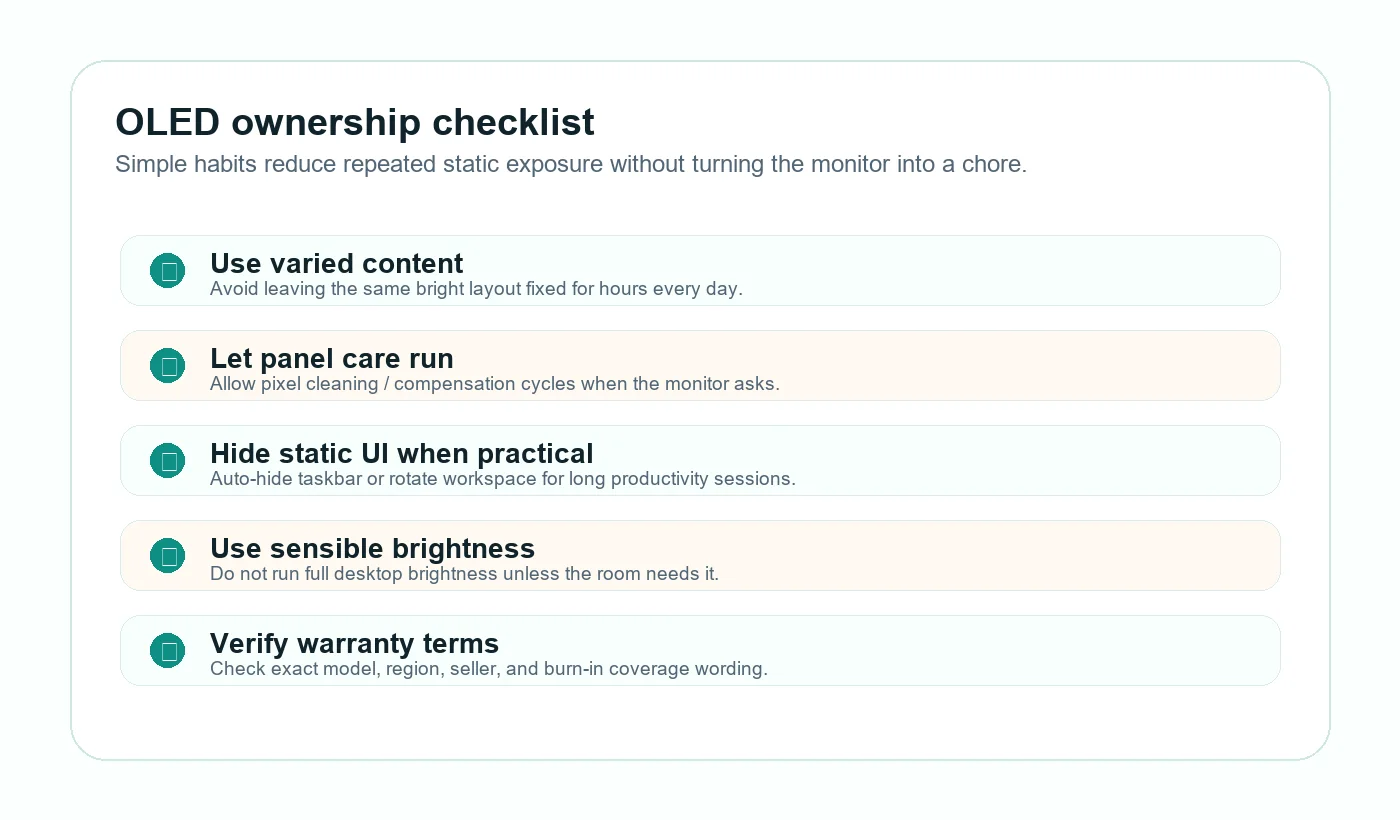
Start with the easy habits. Let the monitor sleep when you walk away. Use a screen saver or display-off timer instead of leaving a static desktop open. Keep panel-care features enabled unless you have a specific reason to change them. If you work in light mode all day, consider lowering brightness to the minimum comfortable level and vary your window layout when a project allows it. None of this has to make the monitor annoying to use, but it does require a little more awareness than IPS or Mini-LED.
| Habit | Why it helps | How strict should you be? |
|---|---|---|
| Auto-hide static bars | Reduces repeated exposure from taskbars, docks, and fixed UI strips. | Useful for heavy desktop use; optional for gaming-first use. |
| Let compensation cycles complete | Panel maintenance helps manage uniformity and image retention behavior. | Important. Do not unplug the monitor during maintenance. |
| Use comfortable brightness | Lower sustained brightness reduces stress on static desktop regions. | Practical for office work; keep HDR/game modes for changing content. |
| Vary long-running layouts | Moving windows or changing app themes spreads wear more evenly. | Most useful for coding, writing, dashboards, and editing timelines. |
| Check warranty wording | Burn-in coverage varies by exact model, country, seller, and registration terms. | Mandatory before buying a premium OLED monitor. |
How monitors protect themselves
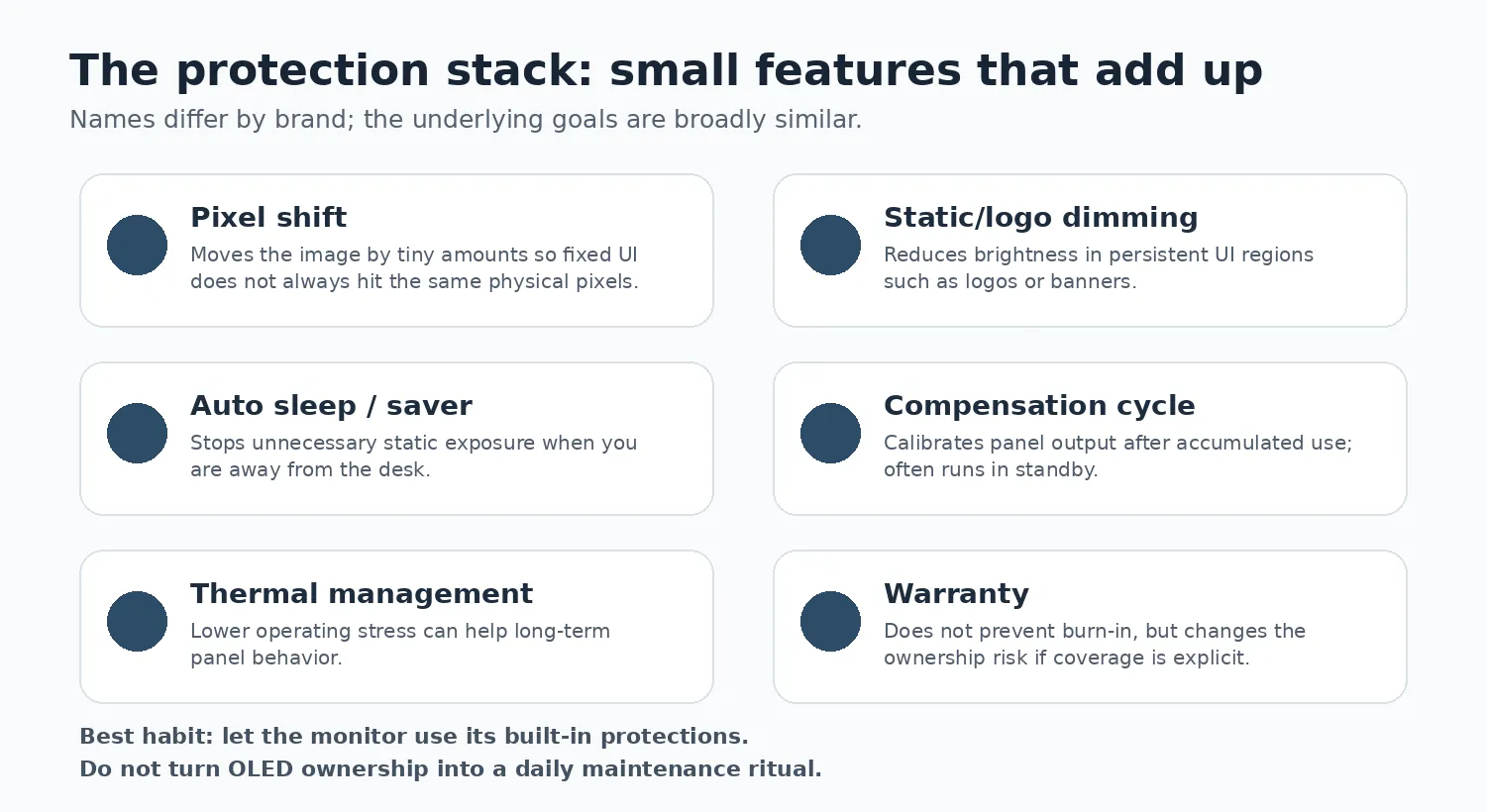
Modern OLED monitors use a stack of software and hardware features to delay uneven wear. The names vary by manufacturer, but the mechanics are similar.
- Pixel shift: The monitor moves the entire image by a few pixels at regular intervals. This softens the edges of static elements like a health bar or a window border, distributing the wear across a slightly larger area.
- Logo dimming / static element dimming: The monitor detects persistent static graphics, such as network logos or game HUDs, and selectively dims them to reduce their power draw and aging rate.
- Automatic brightness limiter (ABL): ABL prevents the entire screen from reaching maximum brightness at the same time, protecting the panel (and the power supply) from excessive thermal and electrical load. While primarily a power-management tool, it limits extreme full-screen wear.
- Screen saver / dimming: The monitor drops its brightness significantly if no movement is detected for several minutes.
- Pixel cleaning / compensation cycles: After a certain number of hours (often four or more), the monitor prompts you to run a maintenance cycle when it goes to sleep or is turned off. The panel measures the electrical state of the pixels and applies compensation to keep the output uniform.
Common OLED burn-in questions
Does Penta Tandem mean burn-in is solved?
No. Samsung Display says its 2026 five-layer QD-OLED architecture improves efficiency and doubles panel lifespan compared with the previous four-layer generation. That is not the same as a guarantee of twice the burn-in-free hours in every monitor and workload.
Does Pixel Refresh remove permanent burn-in?
Treat Pixel Refresh and related compensation routines as maintenance. They can help with retention and panel uniformity, but a permanently aged emitter is not simply made new again by running a refresh cycle.
Should I use dark mode on an OLED monitor?
It is a sensible option if you like it, especially for long desktop sessions, because it can reduce large bright static regions. It is not a burn-in shield.
Is burn-in covered by warranty?
Sometimes, and increasingly often on premium OLED monitors. Coverage is model- and region-specific. Verify the exact local terms before buying rather than assuming a general monitor warranty includes burn-in.
Should I avoid OLED if I use a browser all day?
Not automatically, but you should be more careful. A browser can become a static workload if the same tabs, toolbar, bookmarks bar, and window split stay visible for hours every weekday. Mixed browsing with varied pages is lower concern than a fixed dashboard or web app.
Are OLED gaming monitors safer than OLED TVs?
They are designed for desk use and often include monitor-focused care systems, but the underlying principle is the same: self-emissive pixels age with use. Monitor firmware, panel generation, brightness, warranty and workload decide the practical ownership risk.
What is the best non-OLED alternative?
For heavy productivity, a good IPS monitor is usually the simplest alternative. For buyers who want stronger HDR and higher contrast without OLED burn-in risk, a well-implemented Mini-LED monitor can also make sense. Use the OLED vs Mini-LED vs IPS vs VA guide before deciding.
MonitorSuggest verdict
OLED burn-in is neither a myth nor a reason for most gamers to walk away from OLED. The evidence in 2026 points to a more boring — and more useful — conclusion: workload matters.
If your screen spends most of its life showing games, films and changing content, a modern OLED with sensible panel care and clear warranty coverage is a strong choice. If your day is built around fixed productivity interfaces, the same technology deserves more caution because your use case lines up with the conditions that create uneven wear.
The best decision is not "OLED versus burn-in." It is whether OLED's strengths are valuable enough in your own day to justify its specific ownership trade-off. For gaming-first buyers, they often are. For static-work-first buyers, IPS and Mini-LED remain very compelling for a reason.
Bottom line
Buy the panel for the job you actually do. Do not let OLED marketing tell you burn-in is impossible, and do not let worst-case stress tests convince you every OLED has a fixed expiry date.
How this guide was researched
MonitorSuggest did not run a proprietary long-duration burn-in laboratory test for this guide. The article is an editorial synthesis of independent long-term testing, current manufacturer panel documentation, OLED care instructions and live warranty information.
Where Samsung Display or another manufacturer makes a lifespan or efficiency claim, the wording is attributed to that manufacturer. Where an independent publication reports a test result, that result is described within the conditions of the specific test rather than generalized into a universal OLED lifespan.
Warranty pages and model specifications can change. Before buying an OLED monitor, verify the manufacturer's current terms for your exact model and region.
Sources and further reading
- TechSpot / Monitors Unboxed — The OLED Burn-In Test: Two Years Later — Two-year, ~6,500-hour QD-OLED productivity stress test.
- RTINGS — WOLED vs QD-OLED Monitors — Independent panel comparison including burn-in considerations.
- Samsung Support — OLED monitor burn-in and image retention troubleshooting — Pixel Refresh, Screen Optimization and Pixel Shift guidance.
- ASUS Support — OLED monitor protection mechanism and warranty service — Pixel Cleaning, Screen Move and protection notes.
- LG OLED reliability and image retention prevention — Screen Shift, logo luminance and retention recovery concepts.
- MSI OLED Care — Manufacturer explanation of OLED Care features such as Pixel Shift and static screen detection.
- MonitorSuggest Refresh Rate Guide — Companion guide for Hz, FPS, response time and motion clarity.
- MonitorSuggest Monitor Buying Guide 2026 — Broader monitor buying framework.