A monitor refresh-rate number looks simple on a box: 60Hz, 144Hz, 240Hz, 360Hz, 480Hz, and now even higher experimental numbers. The buying decision is not that simple. A higher refresh rate can make motion look cleaner, reduce the delay between input and visible feedback, and make fast camera movement easier to follow. It can also be wasted money if your games, graphics card, console, cable, or panel response cannot keep up.
This guide explains refresh rate the way a buyer actually experiences it. We will look at the frame-time math, the difference between FPS and Hz, why response time still matters, how panel type changes motion, and which refresh-rate range makes sense for office work, console gaming, story games, esports, creators, and mixed desk setups. Use it alongside the FPS, Hz & Latency Simulator, the panel technology guide, and the Monitor Buying Guide 2026 before shortlisting a display.
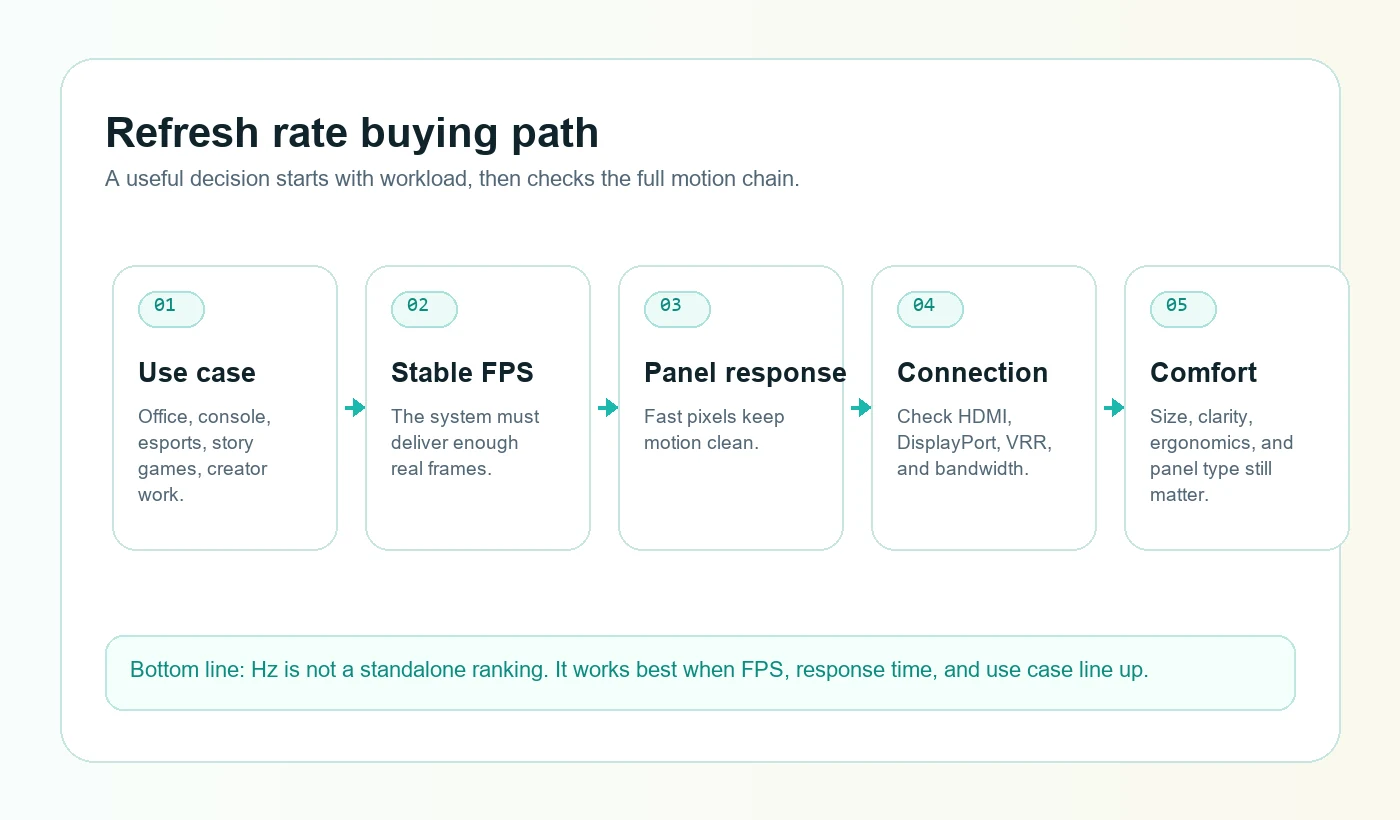
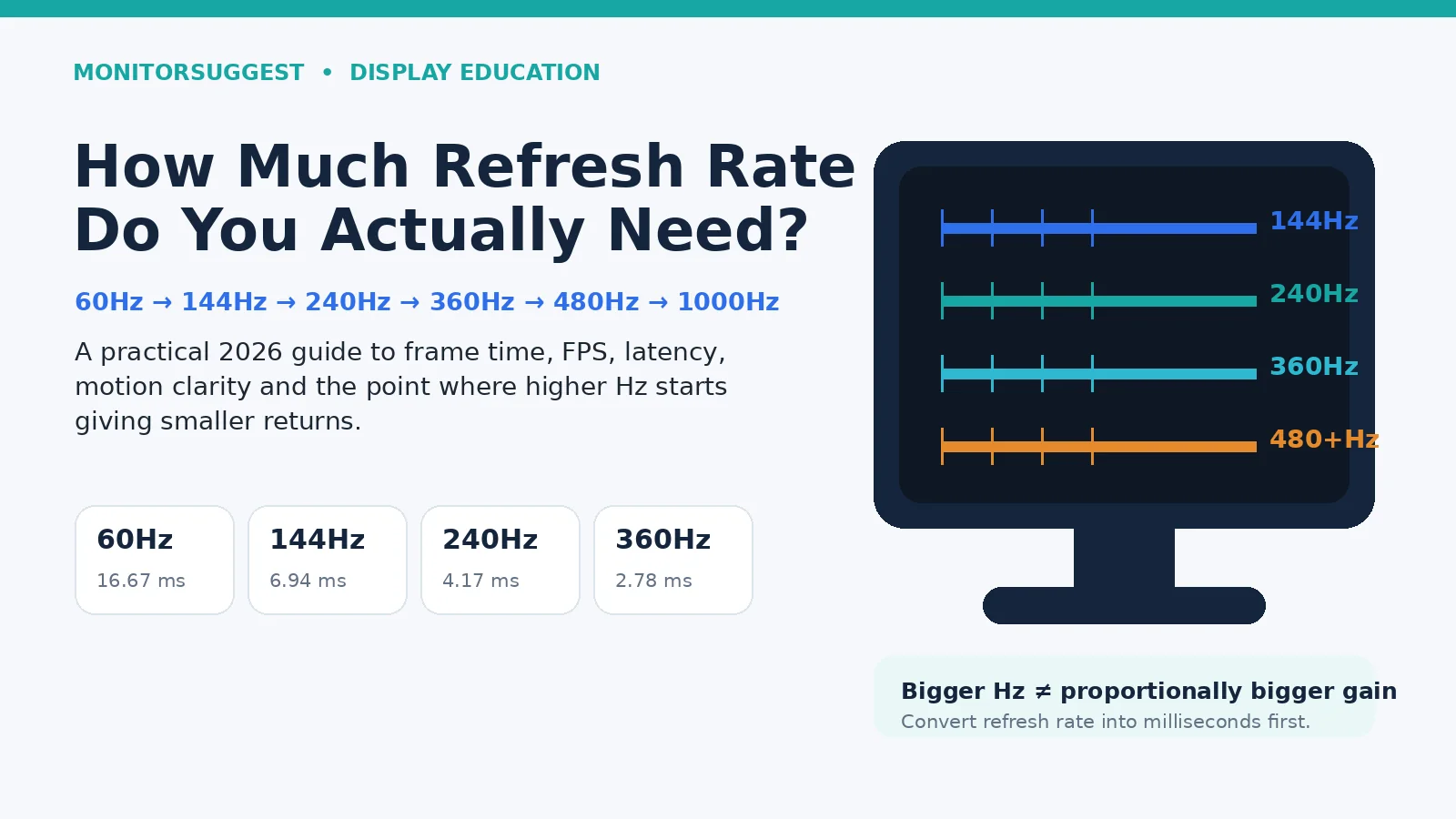
Table of contents
The practical answer: what refresh rate do most people need?
For general office work, school work, browsing, documents, coding, and basic media, 60Hz is still usable. It is not broken. Text does not become sharper simply because the monitor refreshes faster. If your main problem is blurry fonts, cramped workspace, or poor scaling, you should first check size, resolution, pixel density, and panel type with the Monitor PPI Calculator. A 27-inch 1440p monitor at 60Hz may feel clearer for work than a 27-inch 1080p monitor at 180Hz.
For most modern PC gamers, 144Hz or 165Hz is the practical sweet spot. The jump from 60Hz to 144Hz is large enough that many people notice it immediately in mouse movement, camera panning, scrolling, and aiming. It also does not require the same hardware commitment as 240Hz, 360Hz, or 480Hz. A well-balanced 1440p 144Hz or 165Hz monitor is still one of the safest recommendations for a mixed gaming and productivity desk.
For competitive players who tune settings to hold high FPS, 240Hz becomes meaningful. The improvement over 144Hz is smaller than the jump from 60Hz to 144Hz, but the screen updates more often, and the visible position of fast-moving targets can feel more connected to mouse input. This is especially useful in shooters, racing games, rhythm games, and esports titles where tracking movement matters.
For serious esports players, 360Hz, 480Hz, and beyond can make sense, but only in a narrow situation: the system must feed enough frames, the game must benefit from very high frame rates, and the player must be sensitive to motion and input feel. These monitors are not automatically better for movies, office use, creator work, or story games. In many cases, a better panel, higher resolution, stronger HDR, better stand, or better text clarity will be more noticeable.
| Refresh rate | Frame interval | Best fit | Buyer caution |
|---|---|---|---|
| 60Hz | About 16.7 ms | Office, browsing, basic media, budget monitors | Motion and mouse movement feel less fluid than high-refresh displays. |
| 100Hz / 120Hz | About 10 ms / 8.3 ms | Comfort upgrade for work, console gaming, casual gaming | Useful, but monitor quality still matters more than the number alone. |
| 144Hz / 165Hz | About 6.9 ms / 6.1 ms | Mainstream PC gaming sweet spot | Needs enough FPS to feel clearly better in games. |
| 180Hz / 200Hz | About 5.6 ms / 5 ms | Good mid-step for fast 1440p gaming monitors | Check response tuning and overshoot, not only the Hz label. |
| 240Hz | About 4.2 ms | Competitive gaming, high-FPS shooters, smooth motion fans | Hardware and game settings must support high frame rates. |
| 360Hz / 480Hz+ | About 2.8 ms / 2.1 ms or less | Esports-first setups with strong FPS discipline | Returns are smaller and panel/resolution trade-offs become important. |
Refresh rate and FPS are related, but they are not the same thing
Refresh rate is what the monitor can display. FPS is what the game or device creates. If a monitor is 144Hz, it can refresh up to 144 times per second. If a game is running at 62 FPS, the monitor cannot magically turn that into 144 unique frames. It can still show the frames with lower display delay than a 60Hz screen, but the animation detail is still limited by the game output.
This is why many buyers feel confused after buying a high-refresh monitor. They set the monitor to 240Hz, open a heavy game at ultra settings, and the game runs between 70 and 110 FPS. The desktop cursor feels smoother, but the game does not suddenly look like a 240 FPS esports clip. The screen is ready for more frames; the system is not always delivering them.
The reverse can also happen. A game may run at 180 FPS on a 60Hz monitor. The game engine is making more frames, which can reduce input latency inside the game, but the monitor can only show 60 refreshes per second. You may feel some input improvement, but you are not seeing all those frames. A high-refresh monitor lets more of that work become visible.
Why the first jump feels bigger than later jumps
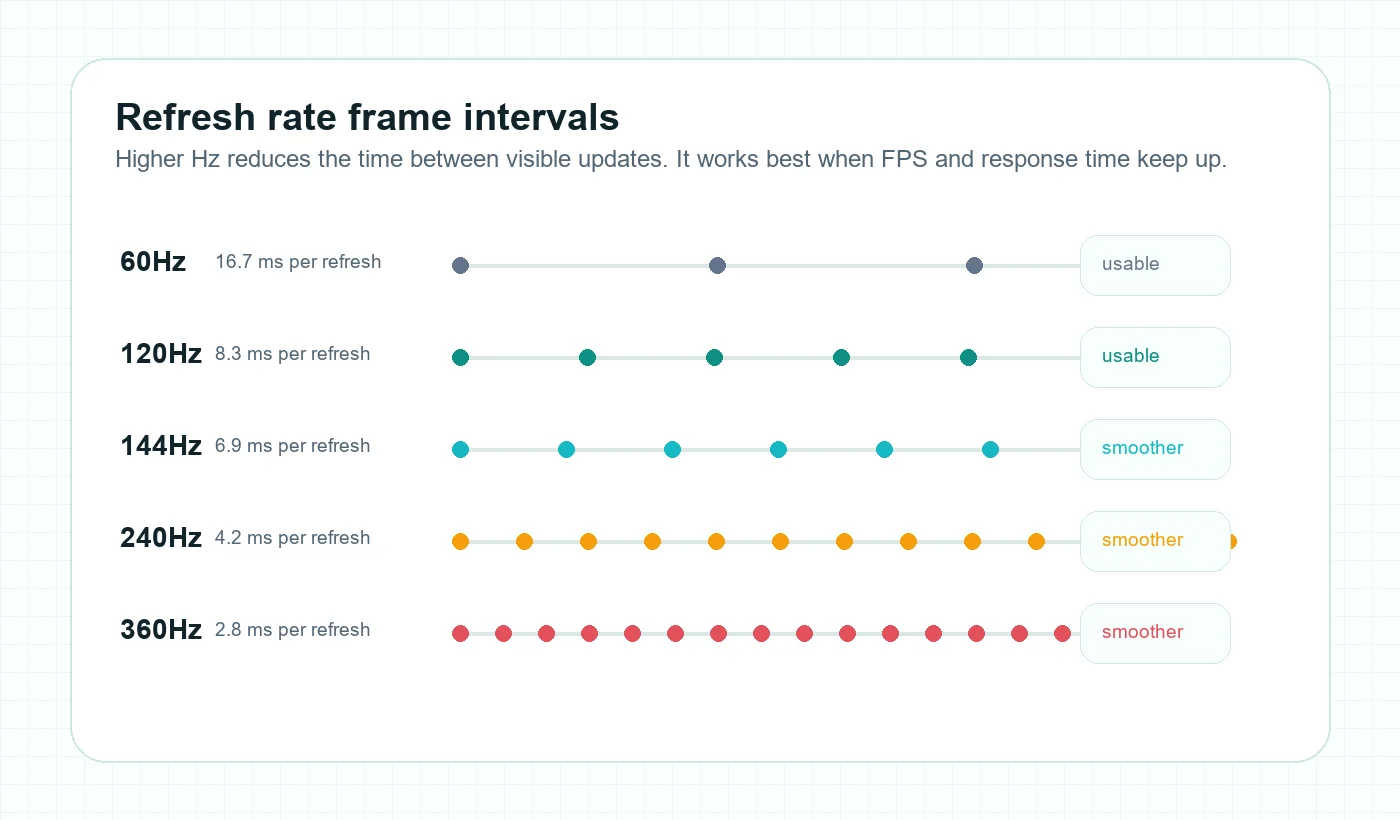
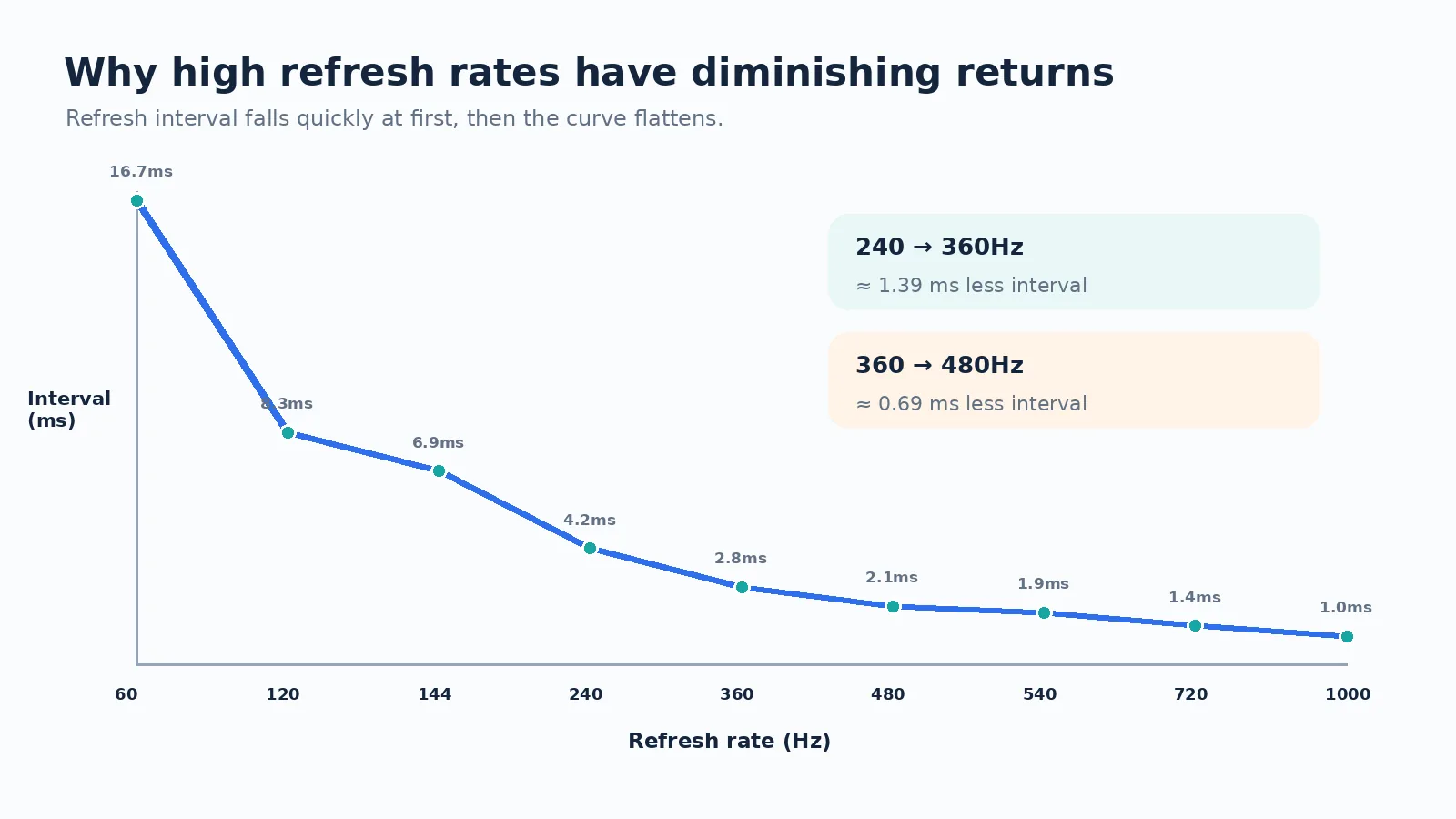
The move from 60Hz to 144Hz cuts the refresh interval from about 16.7 ms to about 6.9 ms. That is a big change. The screen updates more than twice as often, and the difference is visible in everyday interaction. Scrolling looks less broken, mouse trails feel easier to follow, and games look less disconnected during quick turns.
The move from 144Hz to 240Hz cuts the interval from about 6.9 ms to about 4.2 ms. That is still useful, but the gap is smaller. The move from 240Hz to 360Hz cuts it from about 4.2 ms to about 2.8 ms. Again, useful for the right player, but the improvement is now more specialized. This is the basic diminishing-returns problem. Higher refresh rates keep improving timing, but each step gives a smaller visible jump than the previous one.
That does not mean 360Hz or 480Hz is marketing. It means the buyer must be honest about the workload. If you play ranked shooters every day, practice aim, use low graphics settings, and can hold very high FPS, these displays can feel excellent. If you mostly watch video, write documents, edit photos, or play cinematic games at high quality settings, the same money may be better spent on resolution, contrast, HDR, color coverage, or comfort.
Response time decides whether high Hz looks clean
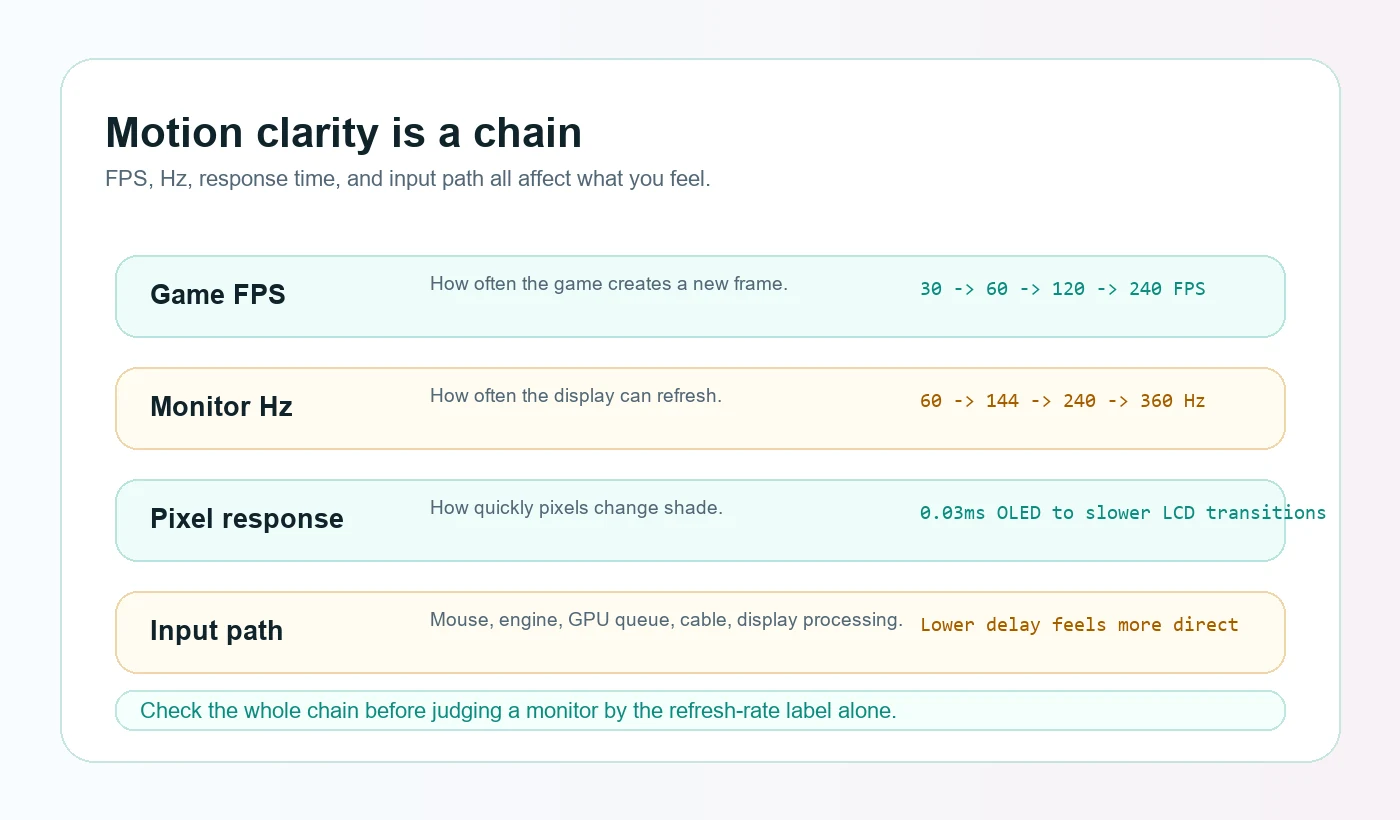
Refresh rate says how often the display can update. Pixel response time says how quickly the pixels can change from one shade to another. If pixels are too slow, the monitor can refresh often but still show blur, smearing, or ghost trails. This is why a 240Hz monitor is not automatically better than a 165Hz monitor in real motion.
OLED and QD-OLED monitors often have extremely fast pixel transitions, which is why motion can look very clean even at the same refresh rate as an LCD. IPS gaming monitors can also be very good, but response tuning varies. VA panels may offer stronger contrast than IPS, yet some VA monitors can show dark-level smearing, especially in shadowy scenes. Mini-LED is a backlight technology rather than a panel response category; a Mini-LED monitor still uses an LCD panel underneath, often IPS or VA, so response behavior depends on that base panel and its tuning.
Buyers should also watch for overshoot. Some monitors achieve fast quoted response numbers by pushing pixels aggressively, which can create inverse ghosting or bright halos around moving objects. A balanced overdrive setting is often more useful than the fastest marketing mode. If you see response modes such as Normal, Fast, Faster, Extreme, or Esports, the middle setting may be the cleanest one for real use.
Adaptive sync, VRR, and frame pacing
Variable refresh rate technology helps the monitor match the game output when FPS changes. Without VRR, uneven frame delivery can feel like stutter or tearing. With VRR, the monitor can adjust its refresh timing within a supported range, making variable frame rates look smoother. This is why FreeSync, G-SYNC Compatible, HDMI VRR, and Adaptive-Sync support matter for real gaming, not only for marketing badges.
VRR does not fix every performance problem. If a game drops from 140 FPS to 42 FPS, you will still feel the drop. If a game has shader compilation stutter, CPU spikes, background process interruptions, or bad frame pacing, VRR cannot make the game perfect. But for ordinary frame-rate variation, it can make the experience calmer and more consistent.
Console buyers should check the exact console and monitor combination. Many modern consoles target 60Hz or 120Hz modes. A 240Hz monitor may still work, but it will not make a 120Hz console mode output 240 unique frames. Console buyers usually benefit more from HDMI 2.1 support, 4K 120Hz compatibility, VRR support, HDR behavior, and proper scaling than from extreme refresh-rate numbers.
Refresh rate by use case
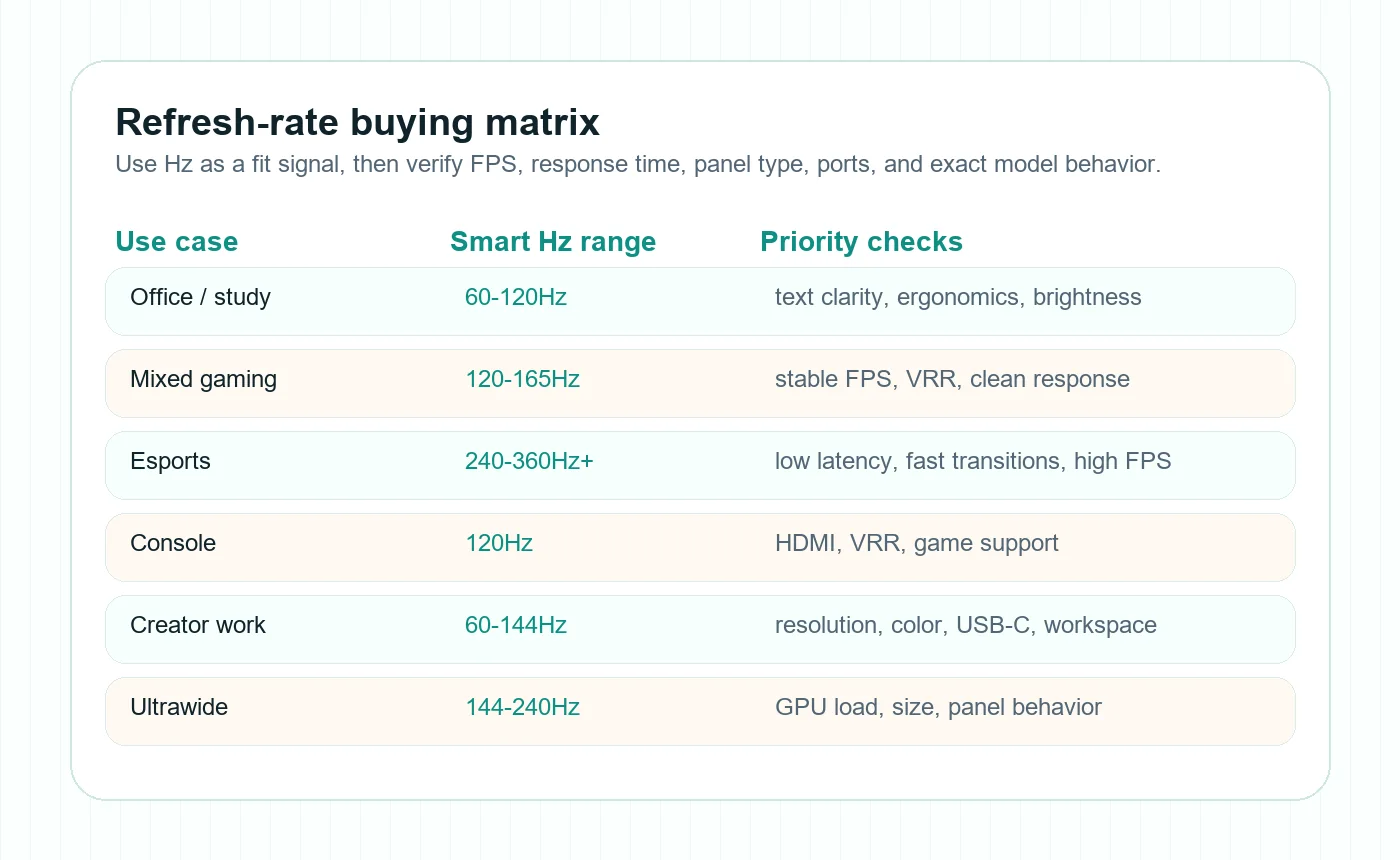
The right refresh rate depends on what you do most often. A single universal answer is less helpful than a use-case map. The table below gives a practical starting point, not a rule that applies to every buyer.
| Use case | Practical target | Why it works | What to verify |
|---|---|---|---|
| Office and study | 60Hz to 120Hz | Text clarity, comfort, and ergonomics matter more than esports speed. | PPI, stand, brightness range, flicker behavior, and warranty. |
| Mixed work and casual gaming | 100Hz to 165Hz | Feels smoother without forcing a high-end GPU setup. | Resolution, panel type, USB-C/KVM if used for work. |
| Story games | 120Hz to 165Hz | Good balance between smoothness, visual quality, and GPU load. | Contrast, HDR, response tuning, adaptive sync. |
| Competitive shooters | 240Hz to 480Hz+ | More frequent updates can help tracking and input feel. | Stable FPS, low input lag, clean overdrive, desk ergonomics. |
| Console gaming | 120Hz first | Current consoles commonly use 60Hz and 120Hz modes. | HDMI 2.1, VRR, 4K 120Hz, HDR, exact compatibility. |
| Creators and editors | 60Hz to 144Hz | Smooth UI is nice, but color, resolution, and workspace often matter more. | Color gamut, calibration behavior, resolution, ports, uniformity. |
| Ultrawide gaming | 100Hz to 180Hz | Extra pixels raise GPU demand, so balanced Hz is usually safer. | GPU strength, curve, pixel density, game support. |
Resolution changes the refresh-rate decision
A 1080p 240Hz monitor can be a smart esports choice because it is easier to drive at very high FPS. A 1440p 165Hz monitor is often better for mixed gaming because it gives sharper image quality while staying realistic for many GPUs. A 4K 144Hz or 4K 240Hz monitor can be excellent, but it asks much more from the system, especially in heavy games.
This is where many buyers overspend in the wrong place. A 4K 240Hz monitor may look attractive on paper, but if your graphics card usually outputs 70 to 120 FPS in the games you play, you are buying future headroom more than immediate benefit. That may still be fine if you plan to upgrade your GPU later, but it should be a conscious decision.
Ultrawide monitors add another layer. A 3440x1440 ultrawide has more pixels than standard 2560x1440, and a 5120x1440 super ultrawide is even heavier. Many ultrawide buyers are better served by a clean 144Hz or 165Hz experience than by chasing 240Hz without the GPU to support it.
| Resolution class | Balanced refresh target | When to go higher |
|---|---|---|
| 1080p | 144Hz to 240Hz | Go 360Hz+ for esports if FPS is consistently high. |
| 1440p | 144Hz to 240Hz | Go 240Hz+ if your GPU and games can justify it. |
| 4K | 120Hz to 165Hz for many buyers | Go 240Hz if you want premium headroom and have strong hardware. |
| Ultrawide | 100Hz to 180Hz | Go higher only after checking GPU load and game support. |
Panel type changes the way refresh rate feels
Two monitors with the same refresh rate can feel different because panel behavior is different. OLED usually has excellent pixel response and very deep blacks, so motion can look crisp and contrasty. IPS can be a strong all-rounder with good viewing angles and increasingly fast gaming variants. VA can look punchy in dark scenes because of contrast, but slower dark transitions may create smearing on some models. Mini-LED can improve HDR brightness and local dimming, but the base LCD panel and dimming behavior still matter.
If you mainly play bright esports games, an excellent fast IPS or OLED can both work well. If you play cinematic games in a dark room, OLED or a good Mini-LED may feel more premium than a plain IPS even at the same refresh rate. If you use static productivity layouts for long sessions, OLED may require more care, while IPS may be simpler. This is why refresh rate should never be separated from panel type.
For a visual explanation of black levels, blooming, viewing angle, and pixel response, use the OLED vs Mini-LED vs IPS vs VA guide. If you are concerned about OLED ownership, read the OLED Monitor Burn-In Guide before buying.
Connection bandwidth and settings can limit refresh rate
Sometimes a monitor supports a refresh rate, but your setup does not. The cable, port, graphics card, laptop dock, console, and monitor settings all matter. HDMI and DisplayPort versions are not just labels; they decide which resolution, refresh rate, color depth, chroma format, HDR mode, and compression method can work together.
If a monitor promises 4K 240Hz, check whether it needs Display Stream Compression, which port supports the full mode, and whether your device can output it. Some laptops have USB-C ports that look similar but support different display modes. Some docks cannot pass the full signal. Some monitors only provide their highest refresh rate through one specific input.
Before buying, open the manufacturer page, verify the exact model code, read the connection notes, and check whether your graphics card or console supports the required output. If a store listing hides this detail, be careful. Exact model matching matters more than generic product names.
How to test a new high-refresh monitor at home
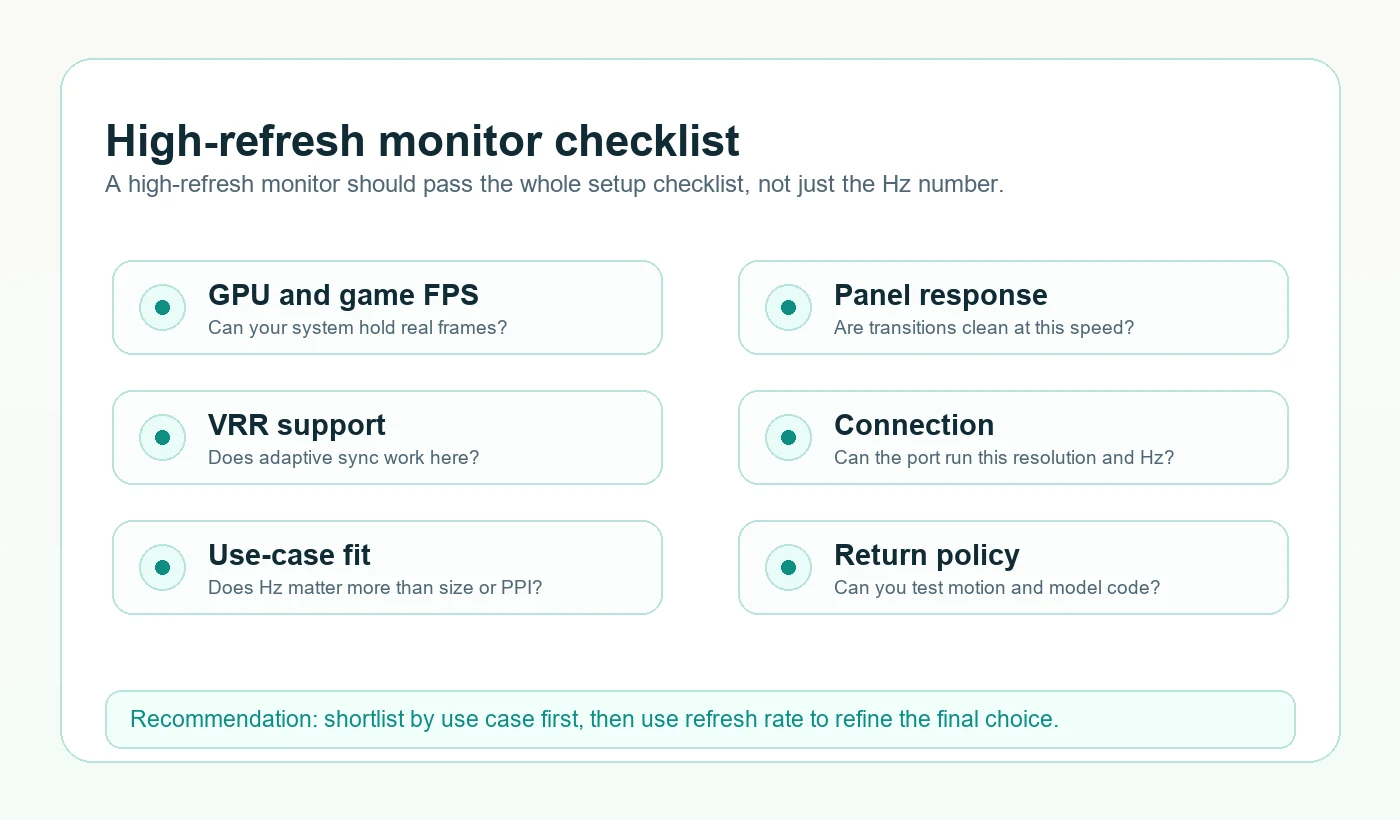
When the monitor arrives, do not only check whether the box says the correct Hz. First, set the operating system to the intended refresh rate. Many monitors default to 60Hz until changed in Windows, macOS, console settings, or GPU control software. Then check the monitor's own on-screen display to confirm the active signal.
Next, test motion with the games you actually play. Do not rely only on a browser demo. Browser demos are useful for a quick sanity check, but real games reveal frame pacing, VRR behavior, overdrive artifacts, HDR interaction, and GPU limits. Try both bright and dark scenes. If the monitor has several response or overdrive modes, compare them. The fastest mode is not always the cleanest.
Also test comfort. Scroll a long page, move windows, watch a video, read text, and play for a longer session. A monitor can be technically fast but still feel wrong because of brightness, coating, panel uniformity, stand height, sharpness, or viewing distance. Keep the box and return policy until you are sure the exact unit works for your desk.
Common buying mistakes
The first mistake is buying the highest refresh rate without checking FPS. A 360Hz monitor is impressive, but it is not the best use of money if your favorite games run near 90 FPS. The second mistake is ignoring response behavior. A high Hz LCD with weak tuning can look worse in motion than a lower-Hz monitor with cleaner transitions.
The third mistake is choosing refresh rate instead of resolution for the wrong workload. If you read, write, code, or edit all day, a sharper screen may matter more than going from 144Hz to 240Hz. The fourth mistake is trusting store names without checking model codes. Brands reuse names, and regional variants can differ in ports, panels, brightness, stands, or included cables.
The fifth mistake is treating one review clip as universal. Motion perception varies by game, camera speed, frame pacing, player sensitivity, and room conditions. A monitor that is perfect for one esports player may be a poor choice for a creator who needs color accuracy and text clarity.
MonitorSuggest recommendation by buyer type
If you want one safe gaming answer, start with 1440p at 144Hz to 180Hz. It gives a clear upgrade over 60Hz, feels responsive, and does not require extreme hardware. If you play competitive shooters seriously, compare 240Hz and 360Hz options, but check real response performance and FPS headroom. If you want a premium 4K desk monitor, 120Hz to 165Hz is already a strong experience for many users, while 4K 240Hz is a high-end choice for buyers who want both sharpness and speed.
If you are buying for console, prioritize 4K 120Hz, HDMI compatibility, VRR, HDR behavior, and exact console support. If you are buying for work, prioritize PPI, ergonomics, brightness range, eye comfort, and ports, then choose a refresh rate that makes daily interaction feel smoother. If you are buying for mixed use, do not chase one number. Compare the full monitor with the Compare Monitors tool and check how the model performs for gaming, productivity, media, and value.
Sources and further reading
This guide is based on MonitorSuggest editorial review, saved monitor specifications, and public standards or manufacturer documentation. Always verify the exact product page, seller, cable requirement, and regional warranty before purchase.
- VESA Adaptive-Sync Display CTS update for official adaptive-sync certification context.
- HDMI Variable Refresh Rate for HDMI VRR terminology.
- DisplayPort for official DisplayPort interface information.
- NVIDIA G-SYNC for variable-refresh ecosystem background.
- AMD FreeSync for FreeSync ecosystem information.
- MonitorSuggest FPS, Hz & Latency Simulator for a hands-on visual explanation.
- MonitorSuggest PPI Calculator for size and resolution clarity.
- MonitorSuggest monitor database for saved monitor entries and comparison paths.
Frequently asked questions
Is 144Hz enough in 2026?
Yes, 144Hz is still enough for many buyers. It is smooth for most PC gaming, noticeably better than 60Hz, and easier to drive than 240Hz or 360Hz. If you play competitive shooters every day, you may want more, but 144Hz remains a strong baseline.
Is 240Hz worth it over 144Hz?
It can be worth it for competitive gaming if your system can hold high FPS. For casual games, office work, and media, the difference is smaller. Check whether your GPU and games can produce enough frames before paying extra.
Do I need 360Hz or 480Hz?
Only a small group of buyers genuinely need those refresh rates. They are best for esports-first setups where FPS is very high and motion tracking matters. For most people, panel quality, resolution, and ergonomics are more important.
Does a high refresh rate improve video playback?
Not in the same way it improves games. Most video is 24, 30, or 60 FPS. A high-refresh monitor can display video cleanly, but it does not create real extra frames unless motion interpolation is used by separate software or hardware.
Can a 60 FPS game look better on a 144Hz monitor?
Sometimes, yes. The monitor may reduce display latency and handle frame presentation more cleanly, especially with VRR. But it will not look like true 144 FPS because the game is still producing only 60 unique frames per second.
Should I choose 1080p 240Hz or 1440p 165Hz?
Choose 1080p 240Hz if competitive performance is the priority and you sit close enough for 1080p to be acceptable. Choose 1440p 165Hz if you want a better all-round mix of sharpness, gaming, browsing, and productivity.
Does OLED make high refresh rate look better?
OLED can make motion look cleaner because pixel response is extremely fast. However, OLED also has ownership considerations for static desktop use. If you work all day with fixed UI elements, read the OLED burn-in guide before choosing.
What setting should I change first after buying a high-refresh monitor?
Set the operating system and GPU control panel to the correct refresh rate. Many monitors can run at high Hz but default to 60Hz until changed. Then test VRR, response mode, HDR, and color settings.
Is refresh rate more important than response time?
No. They work together. Refresh rate controls how often the screen updates, while response time affects how cleanly pixels change. A fast refresh rate with poor response tuning can still show blur or ghosting.
Should creators buy high-refresh monitors?
Creators can enjoy smoother UI, but color accuracy, resolution, brightness, panel uniformity, and connectivity are usually more important. A 4K 120Hz or 144Hz creator-friendly monitor may be better than a lower-resolution esports display.